

 Loading...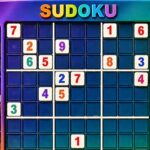










Sudoku Puzzle Master: use the board and its tools deliberately
Sudoku Puzzle Master presents a playable 9 by 9 Sudoku grid with digits 1 to 9 and a visible tool row containing Undo, Erase, Notes, and Hints. The board itself is the centre of the experience, but the supporting controls make the game easier to approach than a number grid with no safety net. A player can enter a candidate, reconsider a choice, mark possibilities, or ask for help when the next deduction is not yet clear. That makes the page suitable for both a careful first attempt and a more methodical return visit.
The basic Sudoku objective remains familiar: place digits so the puzzle’s rows, columns, and 3 by 3 regions follow the rules without repeating a number. The visible interface adds a practical workflow. Click or tap a cell, choose a digit from the number row, and use the other tools when the status of that cell changes. Notes are especially useful when several candidates remain possible. They keep uncertainty visible instead of forcing a premature commitment that may need to be erased later.
Read the board before entering numbers
Begin with the givens and look for a row, column, or box that has very few empty cells. A clear first move reduces the number of possibilities and creates new information for nearby cells. Do not fill a number merely because it feels plausible. Check the three relevant areas first: the row, the column, and the surrounding 3 by 3 region. Sudoku Puzzle Master gives you the tools to wait, so a patient deduction is usually more useful than a guess that creates a chain of corrections.
Click or tap the cell you want to edit, then select a digit from 1 to 9. If you are not certain, use Notes to record candidates rather than entering a final value. This separation between a possibility and a confirmed digit is one of the most helpful habits in a Sudoku game. When another cell is solved, return to the notes and remove candidates that are no longer legal. The board then becomes a working map of the puzzle instead of a collection of isolated guesses.
Undo, Erase, and Hints
Undo is useful when the last move was an experiment or when an entry was made in the wrong cell. Erase clears a selected value and gives you space to reconsider the deduction. These controls make it easier to explore without damaging the whole board. Use them deliberately: when a contradiction appears, trace back to the last assumption rather than erasing several unrelated cells. That keeps the logic visible and helps you understand why the route stopped working.
Hints should be treated as assistance, not as a replacement for reading the grid. If the puzzle stalls, use the hint option to regain direction, then inspect the surrounding row, column, and box to see what information made the move possible. This turns help into a learning moment. A player who uses a hint only to fill a number may finish the board, but a player who studies the reason behind it will be better prepared for the next difficult section.
A calm solving routine
Work in passes. First scan for singles that are forced by the visible numbers. Next review the notes and look for a digit that can occupy only one cell in a region. After each confirmed entry, rescan nearby areas because one move can change several candidate lists. The 9 by 9 layout rewards this local-to-global approach: solve what is clear, update the information around it, then widen the search. A steady routine is more reliable than jumping randomly between attractive-looking cells.
Sudoku Puzzle Master combines a familiar logic objective with an interface that supports careful play. Select a cell, choose a digit, keep uncertain ideas in Notes, and use Undo, Erase, or Hints when the board calls for them. The page focuses on the tested grid and its visible tools rather than claiming a particular puzzle generator or difficulty sequence. For a browser player who enjoys number logic, the game offers a clear reason to stay: every correct entry reduces the remaining uncertainty and brings the 9 by 9 board closer to completion.
Practical notes for a return visit
One of the most useful Sudoku habits is to keep the board reversible. Use Notes for possibilities and reserve a confirmed digit for a move supported by the row, column, and box. If a later deduction removes a candidate, update the nearby notes rather than leaving old information in place. This keeps the grid readable and reduces the chance that a stale assumption will mislead the next scan.
A 9 by 9 puzzle can look busy at first, so divide it into local questions. Which row has one empty cell? Which box is missing a digit that appears nowhere else? Which column becomes clearer after the last entry? After each answer, return to the surrounding area and repeat the scan. The visible number row makes entries quick, while Undo and Erase make careful correction possible without abandoning the whole board.
Sudoku Puzzle Master supports a thoughtful browser session without requiring a download or a complicated setup. The board is immediately visible, the digits are available on screen, and Hints can help when the logic reaches a difficult point. Use assistance as a way to understand the next deduction, then continue solving with your own notes. The satisfaction comes from reducing uncertainty one legal placement at a time until the grid is complete.
More Hot Games
Browse the Hot Games collection or continue with Samurai Brawling and Robot Police Iron Panther.
Frequently Asked Questions
What is Sudoku Puzzle Master about?
Sudoku Puzzle Master presents a playable 9 by 9 Sudoku grid with digits 1 to 9 and a visible tool row containing Undo, Erase, Notes, and Hints. The game frame above contains the current playable version and may change when the provider updates it.
How do you control Sudoku Puzzle Master?
Sudoku Puzzle Master presents a playable 9 by 9 Sudoku grid with digits 1 to 9 and a visible tool row containing Undo, Erase, Notes, and Hints. Use the inputs shown by the live game, because controls can vary by device and provider version.
Does Sudoku Puzzle Master work on mobile?
If the current provider build exposes touch support, it can be tried in a mobile browser. Otherwise use a desktop browser and the controls shown by the frame; performance and orientation can vary by device.
Tap Click a cell ndash Select a grid space Tap Click a number 1 ndash 9 ndash Fill the selected cell Pencil Notes mode ndash Add possible numbers Erase button ndash Remove a number Hint button ndash Get help with a move